
When a business shuts down, relocates, changes its name, or stops offering services, one crucial step that many business owners overlook is properly closing or removing their Google Business Profile (GBP). Failing to do so can confuse customers, negatively affect your local SEO, and lead to unwanted reviews for a business that no longer exists. However, Google doesn’t make this process as straightforward as simply clicking a “Delete” button.
If you leave the listing active, it can confuse customers, harm your local SEO, and even trigger negative reviews for a business that no longer exists. But here’s the catch, there’s no obvious “Delete” button on GBP. Google doesn’t make it as simple as hitting a trash icon.
So how do you actually remove a business listing from Google the right way? Let’s walk through each scenario, explain the correct steps, and clear up the confusion between “removing”, “hiding”, and “marking a business as permanently closed”.
Can You Really Delete a Google Business Profile?
One common misconception is that you can completely delete your business from Google. In reality, once a GBP listing has been created and verified, it becomes part of Google’s local index. Even if you try to remove it, the listing won’t simply vanish.
When businesses close, change ownership, or are rebranded, owners often wonder if they can delete their Google Business Profile (GBP) entirely. While there is no simple “Delete” button on Google’s interface, the short answer is yes – you can remove your Google Business Profile, but there are a few important details to consider before taking that step.
Steps to Delete Your Google Business Profile
If you’re certain that deleting your profile is the right decision, here are the steps you need to follow:
Step 1: Sign In to Your Google Account
Log into your Google Business Profile using the Google Account associated with the business. Only owners and primary owners have the permission to delete a business profile, so make sure you’re signed in with the correct account.
Step 2: Access Business Profile Settings
Once you’re logged in, go to your Google Business Profile dashboard. In the top right corner, you’ll see a three-dot menu (⋮). Click on it to open a dropdown menu, then select “Business Profile Settings.”
Step 3: Select “Remove Business Profile”
In the settings section, find and click on the option labeled “Remove Business Profile.” This is the start of the deletion process.
Step 4: Confirm the Removal
You’ll be prompted to confirm that you really want to remove the profile. Once confirmed, this action will permanently delete your business profile and all associated content, including photos, reviews, and other information.
Step 5: Finalize the Process
After confirming your decision, click “Continue Remove” and then “Done” to finalize the removal. Your Google Business Profile will be permanently deleted, and the process cannot be undone.
Important: If you do not see the option of Remove Business Profile, first mark you business as Permanently Closed, also Remove Business Profile option is only visible to primary owners of the profile.
Case 1: The Business Is No Longer Operating
If your business has permanently closed, the correct process is to mark it as permanently closed on your Google Business Profile. This lets Google and users know that the business is no longer operational, but preserves the historical data and reviews for transparency.
How to do it:
- Go to Google Business Profile Manager
- Select the business you want to close
- Go to Edit Profile – Timing Section
- Choose “Mark as permanently closed”
- Go back to business profile page
- Click the three dots – Business Profile Settings – Remove Business Profile
- Confirm your action
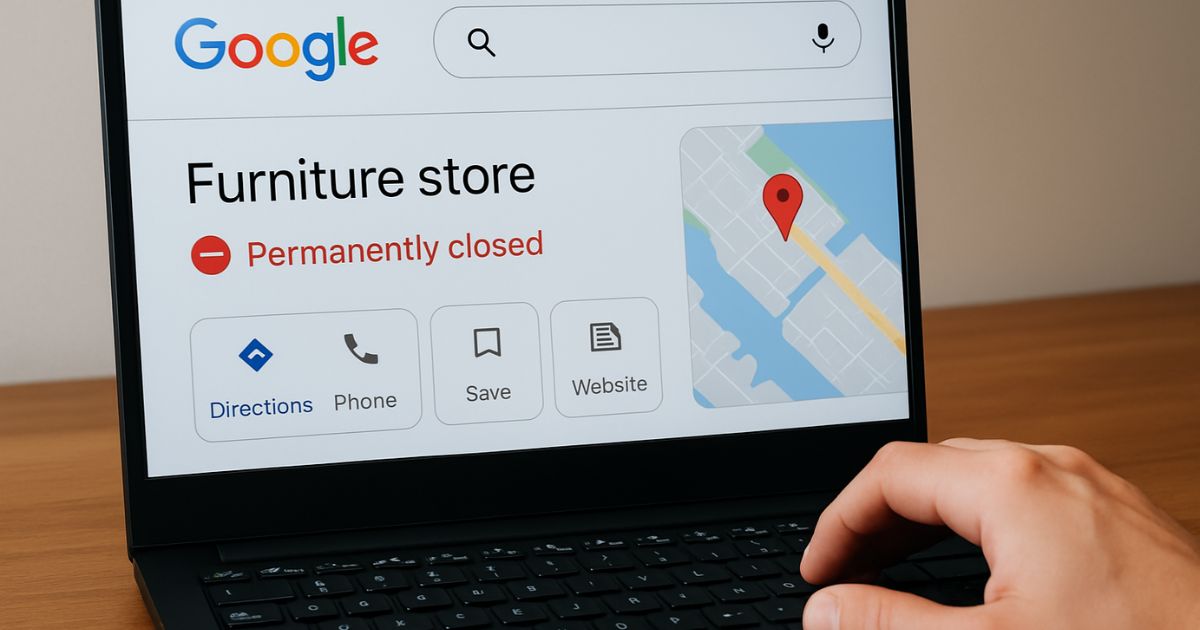
Once marked, the profile will display a red “Permanently closed” label on Google Maps and Search and soon will be removed from Google Maps.
This is ideal if the business did operate at one point but is no longer open, for example, a retail store that shut down or a service company that ceased operations.
Important Considerations Before Deleting a Google Business Profile
- Irreversibility: Deleting a Google Business Profile is irreversible. Once deleted, the profile is gone, and you won’t be able to restore it. Furthermore, Google retains a record of the profile, which means you won’t be able to create a new profile using the same business information right away.
- Option to Remove Content and Managers: In addition to removing the profile itself, you also have the option to remove managers or delete business content separately during the process. However, this does not immediately delete the entire profile.
- Alternative: Transfer Ownership: If you no longer want to manage the business but don’t want to lose all its data, consider transferring ownership to someone else. This allows the business to continue operating on Google, while you can step away from managing it.
Alternatives to Deleting a Google Business Profile
There are cases where deleting a profile may not be the best option. Here are a few alternatives you may want to consider:
- Mark the Business as Permanently Closed: If the business is no longer operational but you want to preserve its review history and other details, you can mark it as permanently closed. This notifies users that the business is no longer open, but it still retains all its previous information.
- Transfer Ownership: If you’ve sold your business or are no longer involved, transferring the ownership of the profile to someone else might be a better solution. This way, you won’t lose all the historical data and reviews attached to the profile.
- Unpublish or Pause the Profile (For Temporary Shutdowns): If your business is temporarily closed due to renovation, relocation, or other reasons, you can unpublish your Google Business Profile or update it to reflect the current status. This keeps the profile inactive without permanently deleting it.
Why Deleting Your Google Business Profile Might Not Be Ideal
Before jumping into the deletion process, here are a few reasons why you might want to think twice:
- Loss of Historical Data: Deleting your profile means losing all reviews, ratings, and other valuable content that can be important for your business reputation, even if you’re no longer operating.
- Search Visibility Impact: If your business was previously ranked in local search results, deleting your profile could have a negative effect on your local SEO, especially if the business has a long history.
- Difficulty Recreating the Profile: Since Google retains a record of the deleted business, creating a new profile with the same business information may be difficult, especially if you’re planning to reopen under the same name or location.
Case 2: You No Longer Want to Manage the Listing
If the business is still open but you no longer manage it, for instance, you’ve sold the company, changed ownership, or no longer work there, you can remove yourself as a manager or primary owner.
This does not remove the listing from Google. It just removes your access.
Steps to remove your access:
- Open your GBP dashboard
- Select the business profile
- Click Users
- Click the ‘X’ next to your name
- If you’re the primary owner, you’ll need to transfer ownership before removing yourself
This is helpful in situations where you’re no longer affiliated but want to clean up your Google account access.
Case 3: The Listing Is a Duplicate or Fake
In cases where a listing is a duplicate, spam, or was created incorrectly, you can report it to Google for removal, but only if it meets very specific conditions.
For example:
- A business listed twice under two names at the same address
- A profile set up for a business that never existed
- A fake or misleading listing created by a competitor
How to request removal:
- Go to the business listing on Google Maps
- Click “Suggest an edit”
- Select “Close or remove”
- Choose the most accurate reason (e.g., “Duplicate of another place”, “Doesn’t exist”, “Spam”)
- Submit your report
Google may take several days to review the request.
Scenario 4: You Want to Hide the Listing Without Marking It Closed
This is rare, but sometimes business owners want to keep their listing inactive, not showing on Maps or Search, without labeling it as “closed”.
This could be due to:
- Temporary shutdowns (renovation, relocation, legal issues)
- Seasonal businesses
- Rebranding in progress
In this case, you can pause business information visibility by either:
- Setting business hours to “Closed” every day
- Removing business categories and key details
- Unpublishing the website attached to the profile
However, this is a gray area. Google prefers transparency, and misleading edits could trigger suspensions. If the downtime is long-term, it’s better to mark it as “Temporarily Closed” or “Permanently Closed” to avoid confusion.
What Happens If You Don’t Close It Properly?
A business in San Diego, a surf rental shop, closed in 2022. The owner simply stopped managing the listing. The profile remained live, customers kept showing up, and eventually negative reviews piled in: “Drove 30 mins here, it’s shut down,” “Wasted time,” etc.
Because the owner didn’t mark it as closed, not only did customers get frustrated, but Google’s algorithm began associating the business with poor user experience. That damaged the brand’s reputation, and created problems when the owner later opened a new shop under a similar name.
Moral of the story: Leaving an abandoned listing up without clarity causes more harm than good.
What If You’re Not the Owner but Want a Business Removed?
If you’re a landlord, a new tenant, or a customer trying to remove a business that no longer exists at a location, you can still report it, even without ownership.
Use the Suggest an Edit tool and select the appropriate reason, or escalate via the Redressal Form if the listing violates Google’s terms.
There’s a Right Way to Close a Listing, and a Wrong Way
Google Business Profiles are a public-facing, user-generated asset, and Google takes accuracy very seriously. Whether you’re shutting down, stepping away, or correcting a listing mistake, the key is to follow the right method based on the situation.
While it is possible to delete a Google Business Profile, it’s important to understand that this process is permanent and can have long-term consequences. If you’re sure that you want to close the business and remove it from Google, the steps are simple. However, if you’re unsure, consider alternatives like marking the business as permanently closed, transferring ownership, or temporarily pausing the profile.
By taking the time to weigh your options, you can make the right choice for your business and ensure that the process is done smoothly without losing valuable online presence and data.
Frequently Asked Questions
Yes, you can delete a verified business listing from Google Maps entirely. You have mark it as permanently closed and then remove business profile in three dots.
It usually takes a few days to a few weeks. Google reviews reports manually in many cases, especially if there’s potential abuse.
Yes. A closed business won’t show up in local search results. However, if the business is genuinely closed, it’s the correct and honest thing to do.
Yes. A suspended listing may still appear to users if it was live before. It just means you can’t manage it through your dashboard until it’s reinstated.
Explore more such blog here – SEO Made Simple | Proven Strategies, SEO Insights and News