
A few months ago, I was casually checking my website’s analytics when I noticed something alarming, users were landing on 404 error pages way more than expected. At first, I thought it was just a few broken links here and there, but when I dug deeper, I realized that these errors were hurting both my SEO and user experience.
If you’ve ever clicked on a link expecting useful content but ended up on a “Page Not Found” screen, you know how frustrating it is. Imagine how many visitors I lost simply because of these errors. Not to mention, Google doesn’t like broken pages either, it can stop indexing important pages and even lower rankings.
That’s when I decided to fix every single 404 error on my site. Here’s exactly how I did it, step by step, using free tools, along with simple solutions anyone can follow.
Firstly understand why 404 error happens
Before jumping into fixing them, I wanted to understand why these errors were happening in the first place. Turns out, 404 pages appear when:
- A page is deleted but still linked somewhere.
- A URL is changed but the old one isn’t redirected.
- A typo in a link leads to a non-existent page.
- External websites link to a wrong or outdated page on my site.
- Google still indexes old URLs that no longer exist.
This made one thing clear: 404 errors are inevitable, but fixing them regularly is crucial.
Finding All 404 Errors on My Website
Now that I knew what I was dealing with, I had to find all the 404 errors. Here’s how I did it:
Using Google Search Console (Free & Easy)
I started with Google Search Console, which is a free tool that helps monitor website health. I logged in and navigated to “Indexing” > “Pages” and looked for the section labeled “Not Found (404)” under “Why pages aren’t indexed.”
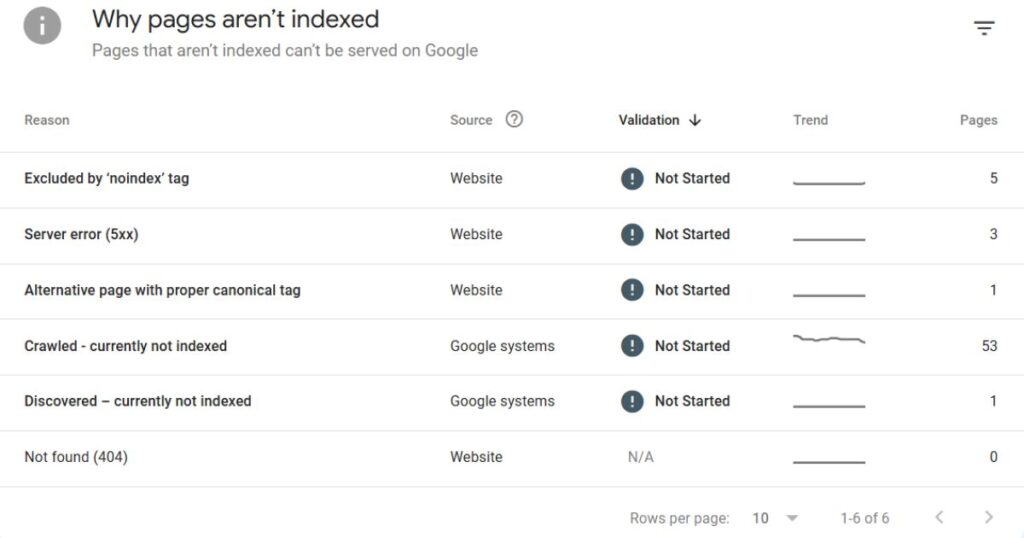
Boom! There it was, a full list of URLs that Google couldn’t find.
Crawling My Website with Screaming Frog
Next, I used Screaming Frog SEO Spider, which is a powerful tool that scans every page on a website. I entered my website URL and ran a full crawl and after the scan finished, I went to the “Response Codes” tab and filtered it to “4xx errors”.
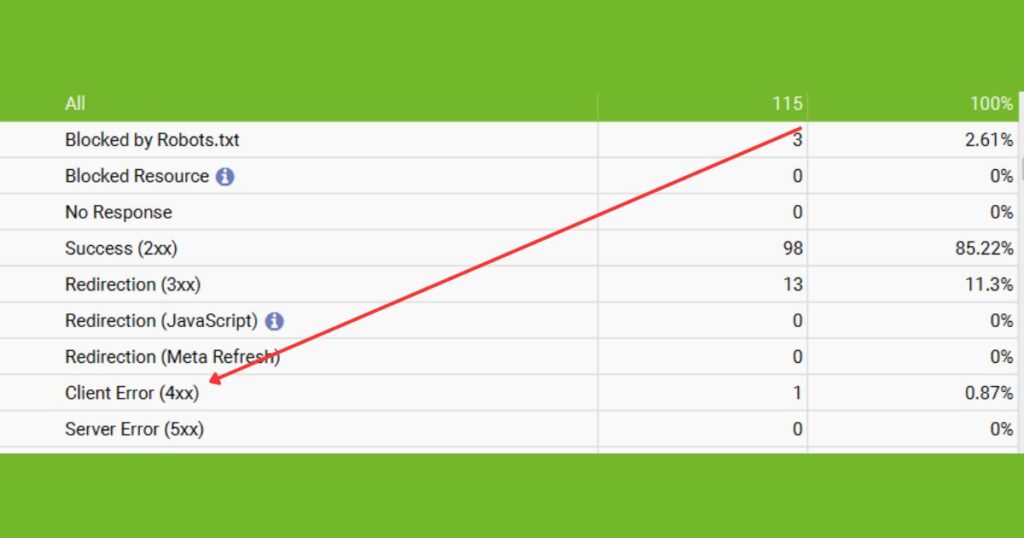
Not only did it show broken pages, but it also revealed which pages were linking to them.
Checking Google Analytics (To See Real Visitor Impact)
Just because a page is broken doesn’t mean it’s affecting my visitors. So, I checked Google Analytics to see if real people were landing on those pages.
- I went to Behavior > Site Content > All Pages.
- Searched for “404” in the Page Title filter.
- This showed me which 404 pages were actually getting traffic.
Fixing Every 404 Error (With the Right Solutions)
Now that I had my list of broken pages, it was time to fix them one by one.
Redirecting Old URLs (Best for SEO & User Experience)
The best fix for most 404 pages is setting up a 301 redirect. This tells browsers and search engines, “Hey, this page has moved, go here instead.”
For WordPress, you can use the Redirection plugin to set up 301 redirects, for non-WordPress sites you can add redirects in the .htaccess file. I made sure each broken page pointed to the most relevant working page, not just the homepage.
Updating Internal Links (To Prevent More 404s)
Next, I fixed all internal links pointing to 404 pages.
- I used Screaming Frog’s “Inlinks” report to see where these broken links were.
- I manually updated them to point to the correct pages.
Recreating Important Missing Pages and Fixing Broken Links
Some 404 pages were actually highly valuable in the past. They had backlinks, search rankings, and traffic. Instead of redirecting them, I decided to recreate them with fresh, updated content and restored the most valuable backlinks.
How to prevent future 404 pages?
To prevent 404 pages, maintain a clean and consistent URL structure, avoiding unnecessary changes. If a page needs to be deleted or moved, always set up a 301 redirect to guide users to a relevant alternative. Regularly monitoring your website for broken links using tools like Google Search Console, Screaming Frog, or Ahrefs can help catch issues early. Updating internal links and ensuring external backlinks point to live pages can also minimize errors and creating a custom 404 page with helpful navigation options can improve user experience if a broken link does occur.
Fixing 404 errors was a game changer for my website. Not only did it improve user experience, but it also helped my SEO by ensuring Google could properly crawl and index my pages. The process wasn’t as complicated as I initially thought, once I identified the broken pages, it was just a matter of applying the right fixes. Now, I make it a habit to regularly check for 404 errors using Google Search Console and website crawlers. By staying proactive, I can prevent future issues before they start affecting my rankings or traffic.
If you have a website, don’t ignore 404 errors. They might seem small, but over time, they can hurt your SEO and drive visitors away. Fix them early, and your website will perform much better, both for users and search engines.